If you are reading this article it means you might have heard a lot about docker. Or, just in case you haven’t heard about docker, let’s understand it from the very beginning. So, coming to the very first question that would pops up in any mind, what is docker? What does it do and why should we use it?
Before we find out what it is, let’s see this one first.
What is a container?
According to information from the docker home page, the container defines the following:
A container is a standard unit of software that packages up code and all its dependencies so the application runs quickly and reliably from one computing environment to another.
With the above definition, you’re still wondering what the container does.
The software companies race on technology, software development lifecycle needs to be done continuously and quickly. So the container came into being.
Imagine that, every time you start writing software, you need to install dependent packages to work, from OS, web server, php version, MariaDB, and so on.
Therefore, to answer this problem container came into existence. You can pack all those things into one file. Later, you just need to run the file and you have the environment ready as you want.
What is Docker?
Now, you understand that the container will help you to have a software development environment quickly and not conflict with the rest of the server.
But, how to get containers or perhaps how to create containers? How can we work with containers and manage containers?
The answer to all the above questions is Docker.
Simply understand, Docker is a platform (both commercial and free) that provides services and tools, allowing you to create packages and run your programs on different environments as quickly as possible. In other words, Docker is the platform that lets you create, manage, modify, deploy, and work with containers.
What are the Benefits of Docker?
1. Simulate the server environment at the local machine
Imagine a situation when you program the software on the local machine very well, but when it was uploaded to the server, it didn’t work. Why? Because the environment on both sides is not the same.
For example, let’s say your machine runs Python 3.5 but the CentOS server runs Python 2.7, so your code fails because of differences in version.
Therefore, you can use Docker to help you simulate the server environment perfectly without changing anything on your local machine.
2. Store and share the project environment settings for the team
Each project can have many people, requiring environmental settings to be meticulously documented, so that everyone can understand.
With Docker, you only need to share the environment image file with the whole team, so make sure the environment is the same between the members.
3. Software testing at the same time
To test the software, many people and many machines are needed at times. If you use a single machine, it will take a long time.
Now you can create multiple identical containers from the same original image file. Each container will let it perform a test task.
4. Test software on other operating systems
Traditionally, you will have to create different virtual machines and install operating systems on it. This takes a lot of time and resources.
With Docker, you just need to create other containers from different OS images. So you’ve got environments with different operating systems already, on the same local machine, and even extremely fast.
5. Avoid conflicts and reuse resources
With a traditional virtual machine, if you install the dependencies fail, you may have to recreate the virtual machine.
Or if you have set up a virtual machine environment to run PHP, now you want to setup a virtual machine to be able to run Django simultaneously. This may conflict with the environment on the virtual machine.
Docker solves that problem easily. By creating different, independent environmental containers.
It will guarantee 2 things:
- First, the containers do not conflict or damage anything on the host machine.
- Second, the containers are independent, do not conflict with each other. The Django runtime environment will not affect the PHP runtime environment and vice versa.
Besides, the reuse of resources. Traditional virtual machine models are very resource-intensive. With Docker and containers, you can create containers in minutes and it takes very little resources.
When you’re done using that container, you just need to use Docker to delete it. Host resources are quickly recovered.
How to install Docker?
Docker is mainly used on Linux computers, including servers and personal computers. Developers can install Docker on their computers and create perfect dev environments.
Add Docker GPG key to Linux Mint
First of all, switch to user root to execute commands or use sudo.
Update the package.
1 | sudo apt-get update -y |
After that, you need to set up the Docker repository. Therefore, you have to install a few packages.
1 | sudo apt-get install ca-certificates curl gnupg -y |
Next, add Docker’s official GPG key.
1 2 3 | sudo install -m 0755 -d /etc/apt/keyringscurl -fsSL https://download.docker.com/linux/ubuntu/gpg | sudo gpg --dearmor -o /etc/apt/keyrings/docker.gpgsudo chmod a+r /etc/apt/keyrings/docker.gpg |
Check your distribution name (optional)
You know, the Linux Mint or Ubuntu versions have their names, in order to be able to add the exact repository for your OS version, you need to specify the name first.
You type the command below.
1 2 | root@mail:~# lsb_release -csfocal |
For example, my server is using the focal version, your computer may be a xenial example.
Add repository and install Docker in Ubuntu
Now, type the following command to add a repository to your computer.
1 2 3 4 | echo \ "deb [arch=$(dpkg --print-architecture) signed-by=/etc/apt/keyrings/docker.gpg] https://download.docker.com/linux/ubuntu \ $(. /etc/os-release && echo "$VERSION_CODENAME") stable" | \ sudo tee /etc/apt/sources.list.d/docker.list > /dev/null |
Then, you have to update the software packages.
1 | sudo apt-get update -y |
Finally, run the following command to install Docker Engine and contanierd.
1 | sudo apt-get install docker-ce docker-ce-cli containerd.io docker-buildx-plugin docker-compose-plugin |
You can verify whether Docker CE is installed correctly by creating a container with the hello-world image.
1 2 3 4 5 6 7 8 9 10 11 12 13 14 15 16 17 18 19 20 21 22 23 24 25 26 27 | sudo docker run hello-worldlatest: Pulling from library/hello-worldb8dfde127a29: Pull completeDigest: sha256:f2266cbfc127c960fd30e76b7c792dc23b588c0db76233517e1891a4e357d519Status: Downloaded newer image for hello-world:latestHello from Docker!This message shows that your installation appears to be working correctly.To generate this message, Docker took the following steps: 1. The Docker client contacted the Docker daemon. 2. The Docker daemon pulled the "hello-world" image from the Docker Hub. (amd64) 3. The Docker daemon created a new container from that image which runs the executable that produces the output you are currently reading. 4. The Docker daemon streamed that output to the Docker client, which sent it to your terminal.To try something more ambitious, you can run an Ubuntu container with: $ docker run -it ubuntu bashShare images, automate workflows, and more with a free Docker ID:For more examples and ideas, visit: |
So, now you have successfully installed Docker Engine on your computer, you can try to create some simple containers to experience Docker.
How to Install Docker-Compose?
Now many times, you will also need to install Docker-compose back to back with the docker engine. So, let’s begin.
First of all download the current stable release of Docker Compose:
1 2 3 4 5 6 | curl -SL https://github.com/docker/compose/releases/download/v2.23.3/docker-compose-linux-x86_64 -o /usr/local/bin/docker-compose % Total % Received % Xferd Average Speed Time Time Time Current Dload Upload Total Spent Left Speed100 633 100 633 0 0 15439 0 --:--:-- --:--:-- --:--:-- 15439100 12.1M 100 12.1M 0 0 37.0M 0 --:--:-- --:--:-- --:--:-- 50.1M |
To install another version of compose replace 2.23.3 with the version of compose you want.
Next, update the permission to binary
1 | sudo chmod +x /usr/local/bin/docker-compose |
Finally, test the installation
1 | docker-compose --version |
Now, that you have successfully installed both the docker engine and compose, you might want to install some container.
Just in case if above command fails to give you output
1 | sudo ln -s /usr/local/bin/docker-compose /usr/bin/docker-compose |
Search for a container image
This article will show you how to search for a container image. Thereby you will get the image you need to launch the container.
Docker Hub
First, I have to talk about Docker Hub. This is a huge Docker library, it contains image containers here and allows you to download.
Temporarily, we’re not going to talk about how to create and upload images to Docker Hub, but we just stop to figure out how to find an image we need to use.
Search directly on the Docker Hub website
Go directly to the website and search for the image. For example, I need a CentOS image, I will type centos in the search box on the website.
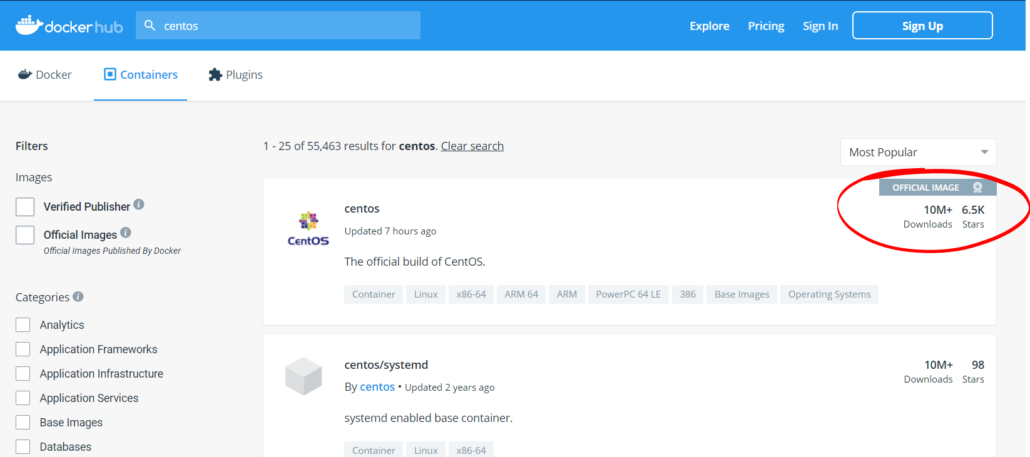
As a result, notice that the images are labeled OFFICIAL IMAGE. These are genuine images for all users. You should use it because it ensures clean images, does not contain underground viruses.
Here, I click on the first result, centos official image. Next, I need to select the tag. You can understand the tag here is the different versions of the image that the provider creates. For example centos 7, centos 8, … if you don’t know the version, you can choose the latest.
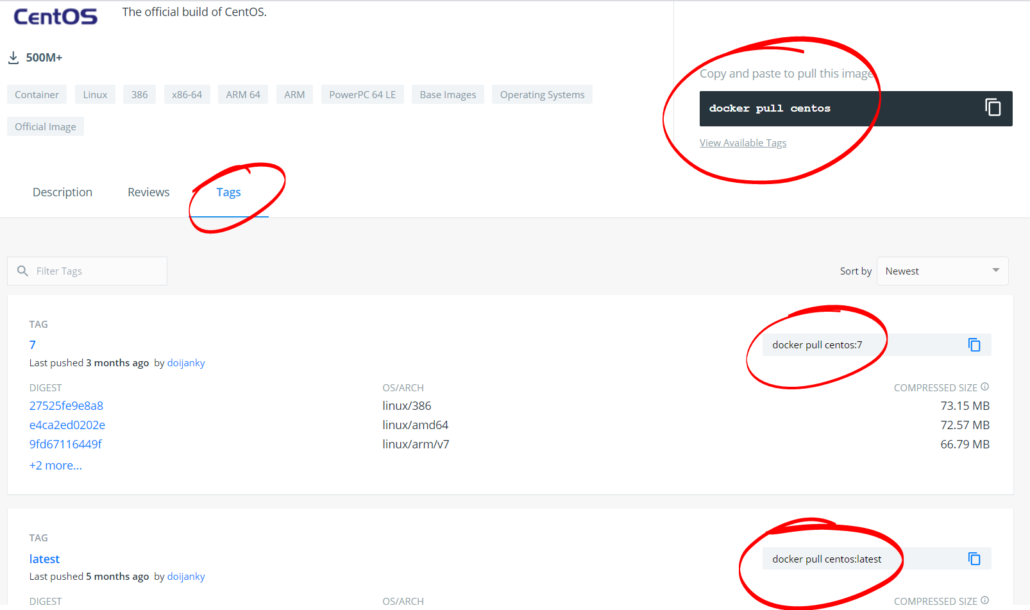
For example, here I will choose CentOS. And now, look to the right of the screen, you will see the following command:
1 | docker pull centos |
This is the command to download the image to your computer or server. Now, if you want to download to CentOS 7, include the selected tag.
1 | docker pull centos:7 |
Search through the docker command
There is another way you can find the images you need, no need to visit the website. That is to use the docker command.
Docker has a search command that allows you to search for images directly from Docker Hub.
Type the search image centos command as follows.
1 | docker search centos |
And the result will show up as follows.
Now, you can also use the pull command to download the image you need to your computer.
1 2 3 4 5 | $ docker pull centos:77.6.1810: Pulling from library/centosac9208207ada: Pull completeDigest: sha256:6ae4cddb2b37f889afd576a17a5286b311dcbf10a904409670827f6f9b50065eStatus: Downloaded newer image for centos:7.6.1810 |
Check the downloaded image
Now you can check the images that you downloaded to the computer using the command below.
1 2 3 4 5 | $ docker image listREPOSITORY TAG IMAGE ID CREATED SIZEcentos 7.6.1810 f1cb7c7d58b7 6 weeks ago 202MBcentos 7 9f38484d220f 6 weeks ago 202MBubuntu 16.04 7e87e2b3bf7a 3 months ago 117MB |
So, that’s how you download images from docker.
Conclusion
In this article, there is no difficult technique. It is simply a tutorial that shows you how to find the image container you need. This is the first step you need to learn, you can’t create the necessary containers if you don’t know how to find the image.
Comments 0
Be the first to share your thoughts!